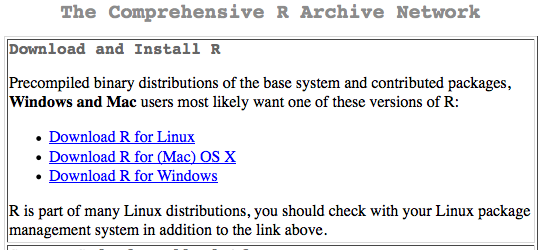
HELP WITH R INSTALLATION Warning! Lately, I've had problems installing optional R packages on systems that don't have absolutely the latest version of whatever operating system runs on that computer. R will probably run even on older systems, but if you're going to need to install optional packages to do what you need to do, and you don't have absolutely the latest version of the OS for your platform, you might want to reconsider using R. You may not be able to get what you need to work. Fortunately, the base R packages are very capable, but they won't do everything. My advice would be, if you have an older computer, check to be sure what you need is available for your system before spending a lot time with R. A list of available optional packages can be found here. If you go there and click on the package in which you are interested, the info page that comes up will often list archived versions that will work with older systems. You will also find a link to the reference manual. Be prepared to scroll a lot. As of this moment, there are over 8200 optional packages available. Installing R If you haven't downloaded R, do so now. Go to this link (opens in a new tab or window)... ...and click on CRAN over on the left margin of the page under "Download". When the list of mirror sites appears, scroll down and choose (click on) one that appeals to you. Pick one in the United States if that's where you are. I'm partial to Berkeley and UCLA myself, especially if it's early in the morning here on the East coast. At the top of the page, you will see this ("this" is an image, so the links don't work here!)...
Windows users should click on the link for Windows (Download R for Windows), then click on base, then click on Download R-3.2.3 for Windows. In the little pop-up box, click on Save File. As of this writing (12 January 2016), R-3.2.3 is the current version, but if you see a higher version number, that's fine, too. Older versions also work, so if you already have an older version of R installed, it should work. You may have trouble installing optional packages into older versions, however. To update an older verion, follow these same instructions. (Go ahead and undate. It's relatively painless, and you may need a newer version to work with RStudio, if you choose to do so.) Mac users should click on the MacOS X link at the mirror site and download the R-3.2.3.pkg file if your OS version is Mavericks (10.9) or newer, and, oh!, if only Apple made life that simple! Please read the note at the download page about installing XQuartz. Frankly, I think it's easier just to stay with an older version of OS X (I'm still using Snow Leopard!), in which case you should get the second package, which is called R-3.2.1-snowleopard.pkg (requires OS X 10.6-10.8). (Aside: If only Apple would stop crippling their operating system each time they release a new verion of it, these kinds of machinations would be unnecessary. I've been a loyal Mac user since Jaguar, but it seems to me the Apple people are working very hard to make Windows look more attractive! Snow Leopard may be my last version of OS X. When something works, I don't see much point in "upgrading" it just to get the most recent iCandy! Maybe they should try making their OS work better instead of putting so much effort into making it work different.) If you need an older version for your Mac, there is an old link a little farther down the page. Linux users will have the easiest time by using their package manager to install R. For example, in Ubuntu, open a terminal window and type "sudo apt-get install r-base", or use the Synaptic package manager (under System Administration) to install this package. You will need an administrator password to do so. (And I haven't used the newer versions of Ubuntu either, so Ubuntu users should update this information as they see fit. I'm an old guy and I no longer have the time or patience to fool with this nonsense every time somebody decides to make a change because they think it looks pretty.) Once it downloads, an icon will appear on your desktop, or wherever it is you save downloaded files--the Downloads folder perhaps--that looks something like this (Windows on the left, Mac on the right): 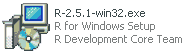
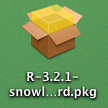
NOTE: On the Mac it will be a .pkg file. Double click this icon (looks like a little cardboard box) and follow the instructions. You will be asked for an administrator password sometime during the installation. That's probably your password if it's your computer and you're the only one who uses it. In Windows, double click the .exe installer icon. The installer will open and ask you a bunch of questions. Just agree with whatever the installer says. Click "Next" or "Agree" or "Continue" or whatever means "yes." R will be installed on your computer. You can now throw the setup file away. (These instructions are pretty much the same for Mac people. It is not a drag and drop installation.) During the installation, a shortcut will be created on your (Windows) desktop that looks like this, with the correct version number of course: 
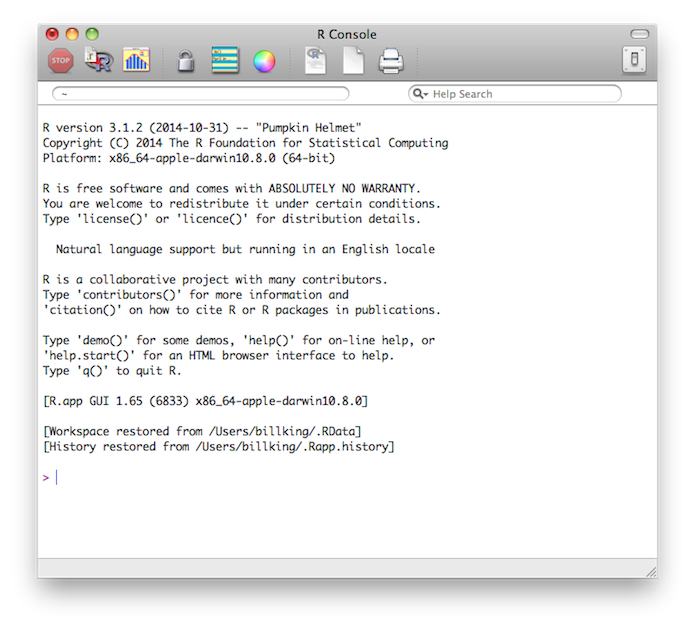
NOTE: On the Mac, a program icon will be placed in the Applications folder that looks something like the icon that appears at the top left of this page. Drag a copy to the Dock for quick startup. In Linux, R is started from a terminal window by typing R and pressing Enter at a command prompt. (You can also start a terminal version on the Mac, by the way. For that matter, you can in Windows, too, but you really wouldn't want to. The Windows terminal is pretty pathetic.) Double click on this shortcut icon to start the program running. This is what you will see (in Windows, but similar on a Mac). Note that this is an ancient version running on Windows XP, but the newer versions won't be too very much different in their appearance. As for changes in the appearance of Windows, you're on your own with that! 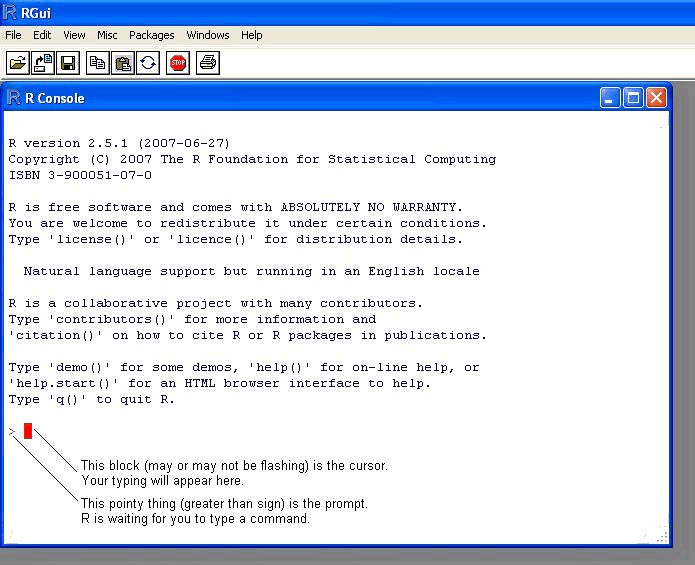
The prompt and the cursor won't be labeled, of course, but be sure you know what they look like. In my current Windows version (2.15.1), the cursor is a vertical line rather than a block and blinks. On my Mac, where I'm currently running verion 3.1.2, it's also a blinking vertical line. You will be seeing A LOT of this prompt and cursor as you use R. This window will look somewhat different on a Mac, but not terribly different. There is one big difference, however. In Windows the R Console is enclosed in a larger RGui window. On the Mac this is not the case. This can be changed on either system by setting an option, but for now it will be fine the way it is. In Linux the program runs in the terminal, but you will recognize it when it starts. Once you get it running, try a couple things to get a taste of how it works. At the command prompt, type this. > ls()Press the Enter key. Don't type the command prompt (greater than sign). R has already supplied that for you. You have to type the open and close parentheses, however. R will issue the reply character(0), unless someone has been using R on your system previously. We'll find out what this means eventually. It's one of R's more cryptic responses. (It literally means "nothing!") Now type this, and press the Enter key (it's called Return on a Mac). > getwd()The answer I got was [1] "/Users/billking". This is a vital piece of information, and you should make a note of it. It tells you where on your computer R expects to find things, such as data files, that you tell it to find. The answer you'll get on your computer will be different, of course. Now I suppose you want to quit R. Knowing how to get out of a command line program is always a good thing. I could tell you a funny story about trying to get out of a SAS terminal, but... Well, never mind! Suffice it to say it took me awhile to find the correct command by trial and error. The command to quit R is quite complicated, so make a note of it. > quit()Don't forget to type the parentheses and press the Enter key. When asked if you want to save your workspace, pick "no" ("Don't Save" on a Mac) unless you're certain that you want to. Congratulations, by the way. You have just installed one of the most powerful pieces of statistical software available at any price, and the good news is you got it for free. You are not paying an exorbitant amount of money to "rent" the software, and it will not go dead on you when your license runs out. Updates and optional add-on packages are also free. Nor are you being addicted to a horrifyingly expensive software package by being given some cheap student version to learn on. This is the full package! Go to one of these links if you want to find out what free software is all about.
Installing R Studio First, quit R if you haven't already. Second, furrow your brow and wonder aloud, "Do I want to install R Studio or not?" I personally have mixed feelings about it, and I will NOT be using it in these tutorials. I've been using R for over 12 years, and for almost all of that time I've been running the R Console (which is what you witnessed above after starting R). It's perfectly serviceable, but it does have its awkward moments. R Studio is an add-on shell for R that makes it considerably easier to use in many ways, and in a few ways makes it more of a pain in the arse. If you want it (optional), go here. Read down the page until you come to a heading called "Installers for Supported Platforms". Hopefully, you have one of those! Don't go to the Zip/Tarballs list. Do you know what a tarball is? Then don't go there! Read through the list of Installers for Supported Platforms (secret computer jargon for operating system) until you see your operating system. It will probably be either the first one or the second one. Click that link, and when the Save File window opens, do what it says. Then install R Studio. The good news for Mac users is this is a drag and drop operation, unlike the R installation. MAKE SURE YOU HAVE INSTALLED R FIRST! R Studio will not work without R. For Windows people, a start-up icon will be placed on the Desktop. (I assume that's still true. It was true in Windows 7, the last version I have any experience with. But you know how these people like to change things for no good reason, so I make no guarantees.) Mac people will have to drag a copy from their Applications folder to the Dock. The icon for the application on my Mac looks like this. 
When you start R Studio from its start-up icon, you will get a window that looks very much like this on whatever system you are using. 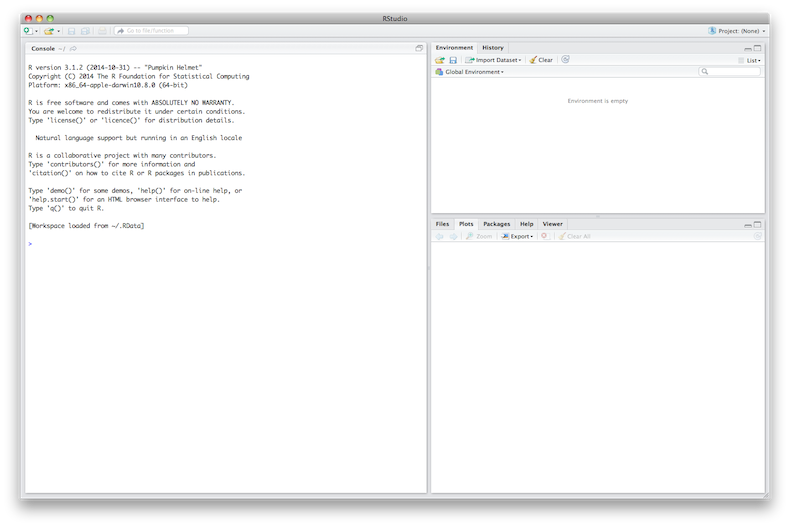
Your R Console is on the left, and it works almost identically to the regular R Console window that comes with R. If you know how to use one, you know how to use the other. That's all I have to say about it. As I said, I will not be using it in these tutorials. But give it a look. You may like it a lot. Try YouTube for some instructional videos. I can recommend this one: Getting Started With R and RStudio . I think it will be good for you to begin using R without R Studio first. So that is the way these tutorials will proceed. Quit R Studio by issuing the quit command (with parentheses and a press of the Enter key). Answer no when asked if you want to save your workspace. Welcome to R! We're happy to see you. revised 2016 March 25; updated 2016 April 17 |